CueSportAi POS: user guide
CueSportAi POS runs a pool or snooker club from one tablet: the tables and their time, the bar, the kitchen and the payments. Servers can carry the same POS on their Android phone. Card payments go through the club's own Square account.
This guide is for owners, managers and staff. The pictures show a made-up demo club, "Corner Pocket"; names and amounts are examples.
1. What you need
| Part | What it does |
|---|---|
| A tablet | The main POS at the counter. Android with the CueSportAi POS app is best: card readers, Tap to Pay and Bluetooth printers only work in the app. Any browser also works at /pos/. |
| Phones (optional) | Servers run the same POS on their Android phone: orders at the table, payment at the table. |
| Printers (optional) | A receipt printer with a cash drawer, and kitchen or bar printers. Network or Bluetooth. |
| Square | Card payments: a Square Terminal, a Square Reader, or Tap to Pay on the phone. |
| Shelly 1PM (optional) | One per table, behind the light switch. The light runs the table's clock. |
The POS is switched on for your club by CueSportAi or PaySetup.
2. Set up a tablet
- Open the POS app (or
/pos/in the browser). A new tablet shows Set up the POS. - Tap Sign in and sign in as the club's owner or admin.
- Choose the Club, what This tablet is (the POS, or a kitchen / bar screen) and a Name for this tablet, for example "Counter" or "Bar".
- If you have no POS PIN yet, choose one (4 to 6 digits).
- Tap Use this tablet as the POS.
The first setup needs the internet. From then on the tablet works without your website sign-in: staff sign in with their PIN. To take a tablet away, go to Back Office → Settings → POS tablets → Unpair.
3. Sign in with your PIN
- The lock screen shows Enter your PIN. Type your 4 to 6 digits and tap Enter.
- Lock (top right) signs you out. The POS also locks itself after 10 minutes untouched. To change staff: Lock, then the next PIN.
- ⏱ Clock in / out on the lock screen records your hours.
- The 🌐 button picks the language: English, 中文, Français or Polski, per tablet.
What each person can do is set in Back Office → Staff:
| Role | Can |
|---|---|
| staff | Ring up orders, run table time, take payment. |
| manager | Also void, discount, comp, change a price, refund and reopen. |
| owner | Everything, including the Back Office set-up. |
When a staff member tries a manager action, a Manager PIN pad pops up so a manager can approve it on the spot.
The top bar shows the drawer, Online / Offline, the time, who is signed in, ☰ (the Back Office) and Lock.
4. The floor and table time
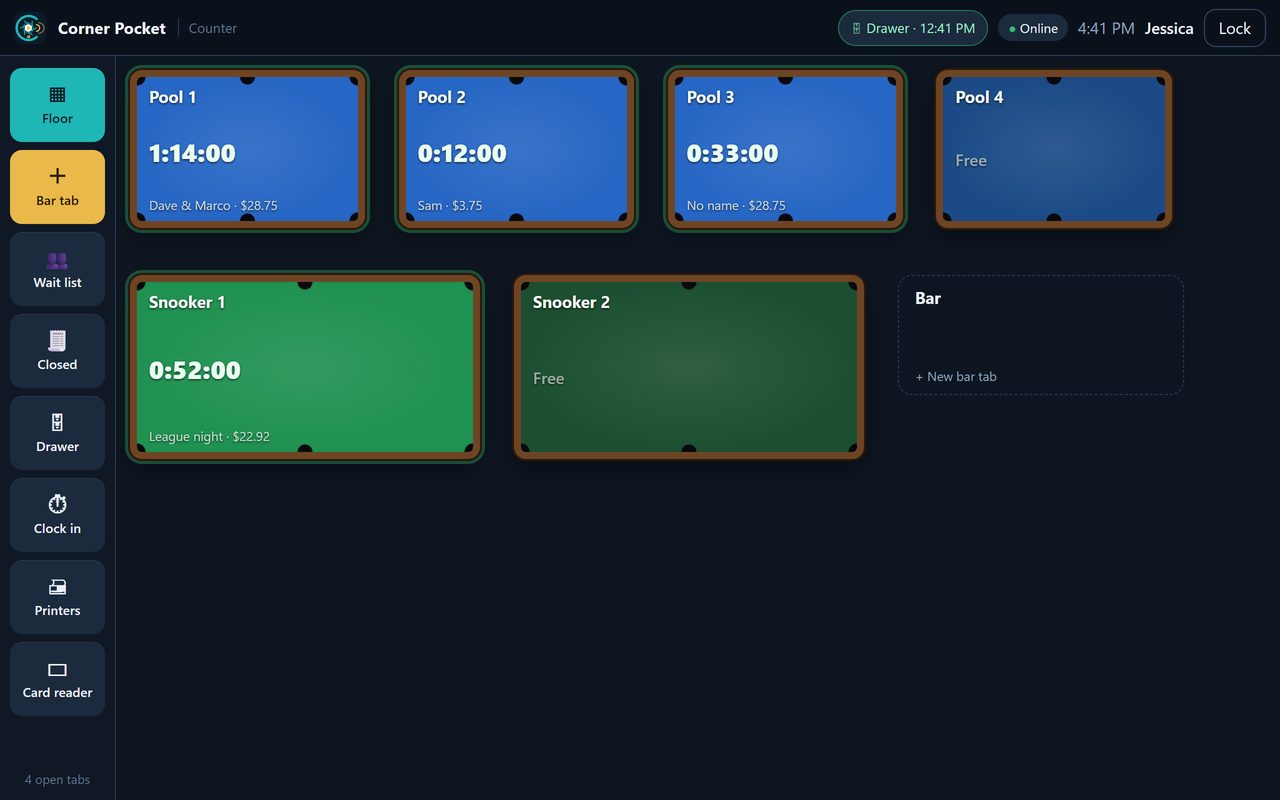
Every table is on the floor: snooker green, pool blue, Chinese 8-ball red. A tile shows Free, the time running (⏸ when paused), a booking, or a warning such as "Light on — no time running".
Start a table: tap a free table. The start sheet offers:
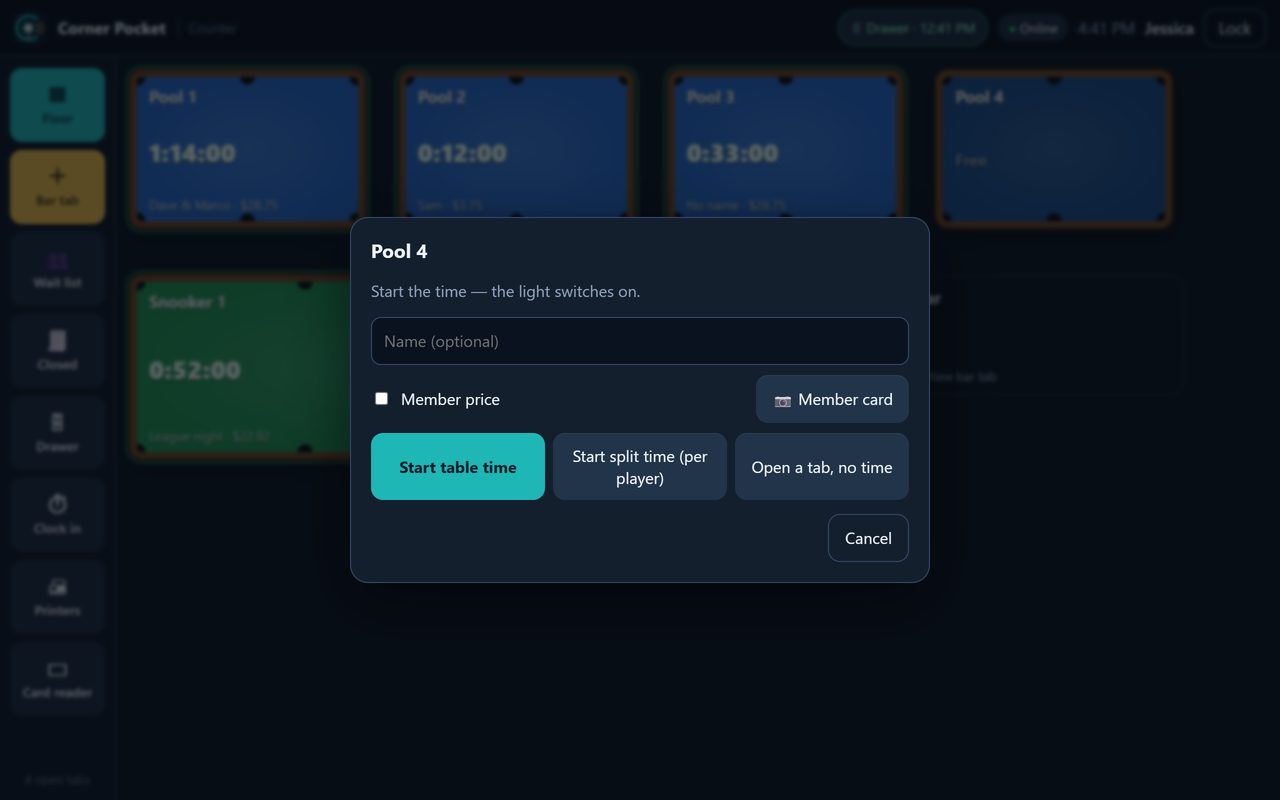
- Name (optional): filled in from a booking or a scoreboard match.
- Member price, or 📷 Member card to scan a member's card.
- Players when the rate is priced by players.
- Start table time, Prepaid time, Start split time (per player), Open a tab, no time, or 💡 Light only (no charge).
Starting the time switches the table's light on; stopping it switches it off. With a Shelly behind the wall switch, it also works the other way: turn the light on and the time starts.
On the bill, the time block has:
| Button | What it does |
|---|---|
| ⏸ Pause / ▶ Resume | Stop the clock for a break. |
| ⏰ Alarm | The tile rings after 15 minutes to 2 hours. |
| + Player | Split time: each player pays their own share; Leaves stops one player. |
| ■ Stop | Stop the time. ▶ Resume carries on without charging the gap. |
| ✎ Edit time | (Manager) Fix the start or end time, the total, or the amount. |
Move a table: ⇄ Move. The time so far stays at the old table's rate, the new table starts now, and the lights follow.
Lights: 💡 Lights on the left shows every table's light. Switch one on with no charge (cleaning, practice, a demo) or turn All off at closing.
5. Take an order
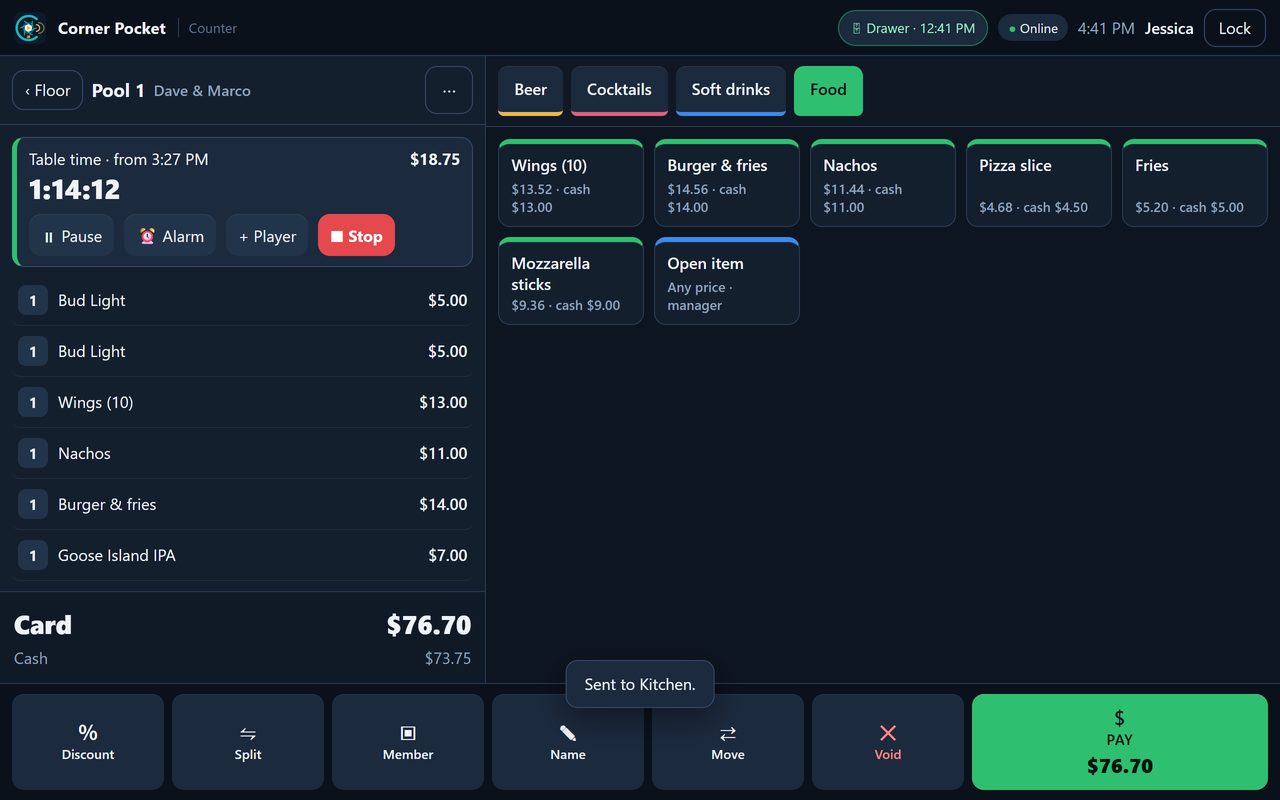
- Tap a table, or + Bar tab for the bar (give it a name, for example "Mike").
- Pick a category at the top, then tap items. An item with options asks for them; add a Note such as "no ice".
- 🔔 Send sends the new items to the kitchen and bar. They also go by themselves when you leave the bill, lock the POS or pay.
Change a line: tap it (or swipe it left).
- Before it is sent: quantity, options, note, Remove.
- After it is sent: +1 more, Move to another tab, or Void (manager, with a reason; the kitchen gets a VOID ticket).
- 💲 Price (manager): a percentage off, an amount off, Free, or a new price for this bill only. Menu price undoes it.
The bar along the bottom:
| Button | What it does |
|---|---|
| % Discount | (Manager) 10 %, 20 %, 50 % or an amount off the whole bill, with a reason. |
| ⇋ Split | Shows the bill split evenly 2 to 6 ways; take each share with Pay. |
| ▣ Member | Link a member: member prices and their discount. |
| ✎ Name | The name on the tab. |
| ⇄ Move | Move the table to another table. |
| ✕ Void | (Manager) Void the whole bill, with a reason. |
| PAY | Take payment. |
Happy hour prices (Back Office → Menu) apply by themselves at the set days and times.
Servers on their phones
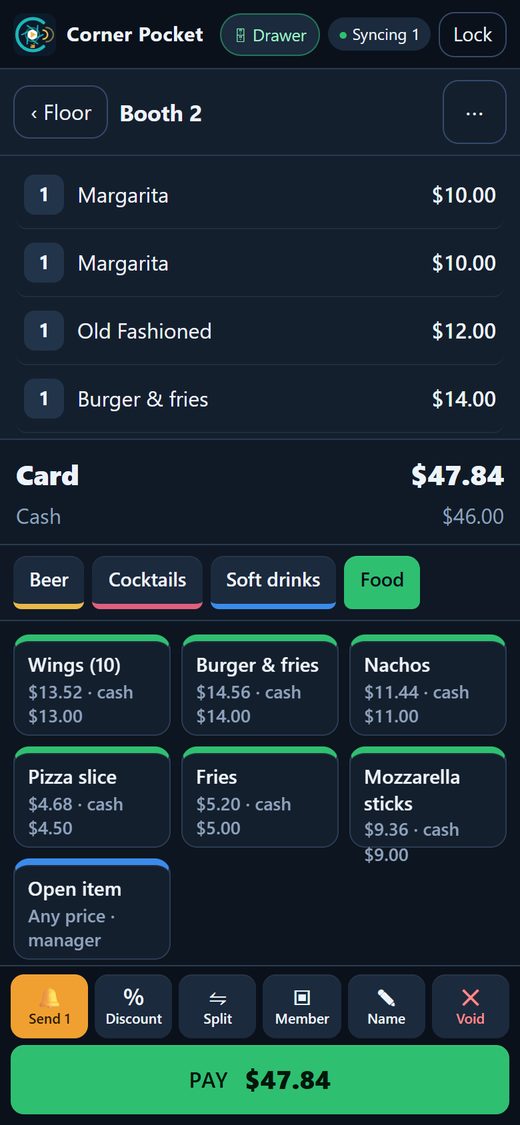
Servers sign in on their phone with the same PIN and take orders at the table. A phone needs no printer: its kitchen tickets print in the kitchen and its receipts print at the main POS at the counter.
Kitchen and bar tickets
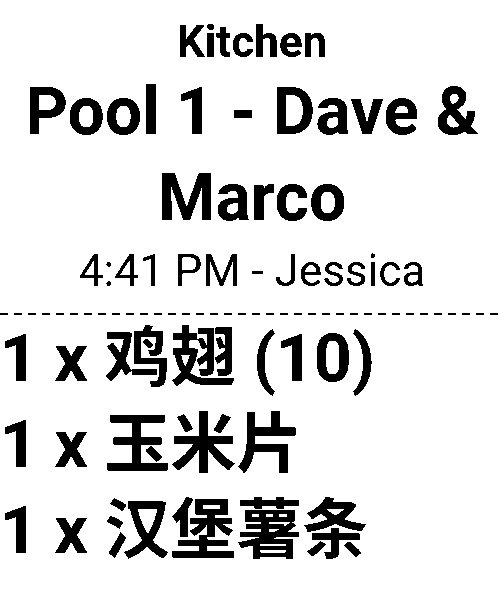
Each printer has its own language and print size, so the kitchen can read tickets in Chinese in large print while the guest's bill stays in English. A tablet can also be a kitchen screen instead of a printer: tickets show how long they have waited, with Done and ↶ Recall.
6. Take payment
Tap PAY. Pay all of it one way, or part one way and the rest another: the bill closes when nothing is due, and the table time stops then.
| Button | How |
|---|---|
| 💵 Cash | Type what the guest gave; the POS shows the change and opens the drawer. Needs an open drawer (see section 8). |
| ▭ Square Terminal | Send to Terminal; the guest taps, inserts or swipes on the Terminal. |
| ▭ Card reader | In the POS app: a Square Reader, or Tap to Pay on this phone (supported Android phones). |
| 💳 Card on terminal | Any other card machine: type the amount, then Approved. |
| 🎁 Gift card / 💠 Member balance | Pay from a gift card or a member's balance. |
| ★ Comp | (Manager) No charge, with a reason. |
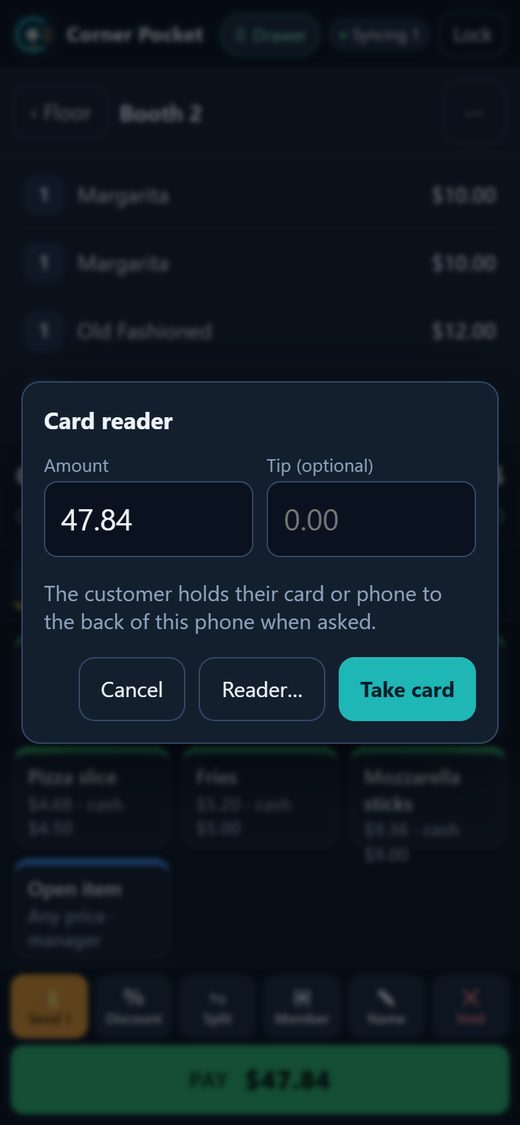
Tips can be added on cash and card payments.
Hold a card: with a Square Terminal, the start sheet can hold a card when a table opens. At the end the bill is charged to it, or the hold is released.
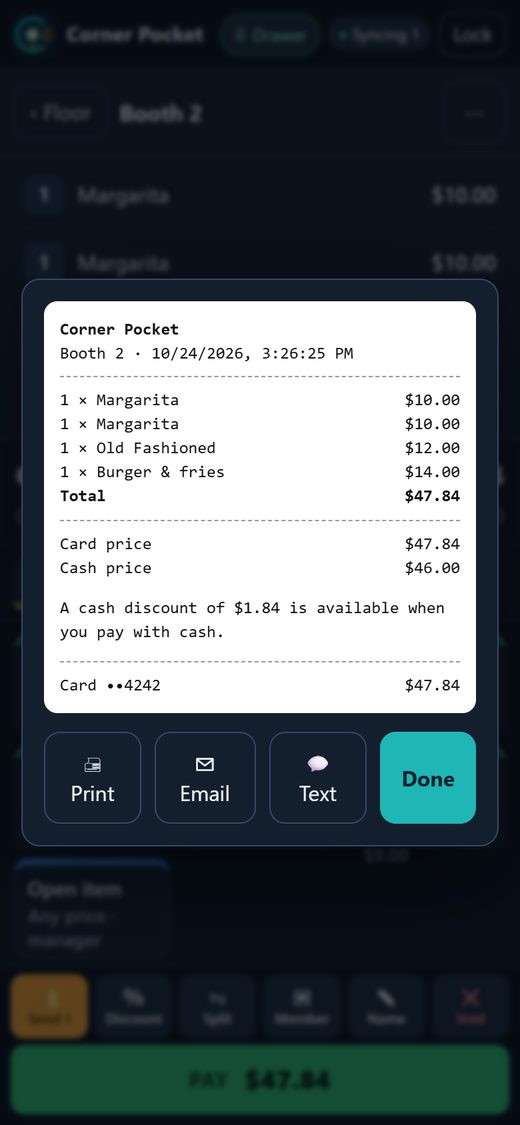
Card and cash prices: with Dual pricing on (Back Office → Settings), every price shows a card price and a lower cash price, on the screen and on the receipt. With it off, there is one price for everyone.
Receipts: 🖨 Print, ✉ Email or 💬 Text. A text sends the guest a link to their receipt.
Refunds and reopening: Closed on the left lists today's bills. A manager can Refund all or part of a payment (it goes back the way it was paid) or Reopen a bill from the last 24 hours.
7. Square
Every card payment goes through the club's own Square account. Set it up in Back Office → Settings → Square settings:
- Connect Square and pick your Location.
- Pair a Square Terminal (the Terminal shows a code to type in), or pair a Square Reader in the POS app (☰ → ▭ Card reader).
- Sales in Square: turn it on and every bill goes to your Square account as an itemised order: the items, the table time, taxes, discounts and how it was paid. Your Square reports then match the POS. Copy the menu now copies your menu to Square's item library.
Cash, gift card and member balance payments are recorded in Square too, but no money moves for them.
8. The cash drawer
- Drawer → Open the drawer: count the float and Open shift.
- During the day: ⬇ Cash drop to safe, Paid in, Paid out (manager).
- At closing: Close shift. Count the cash without seeing the expected total; the POS then shows Balanced, Short or Over.
- A server who keeps their own cash uses My bank and checks out with a manager.
9. If the internet drops
Keep selling. The top bar shows Offline and how many changes are waiting. Sign-in, tables and time, orders, kitchen tickets, cash, discounts and receipts keep working, and everything syncs when the internet is back. Several tablets share the same tabs.
Without the internet you can't use the Square Terminal, Tap to Pay, gift cards, member balances or the Back Office.
10. The Back Office
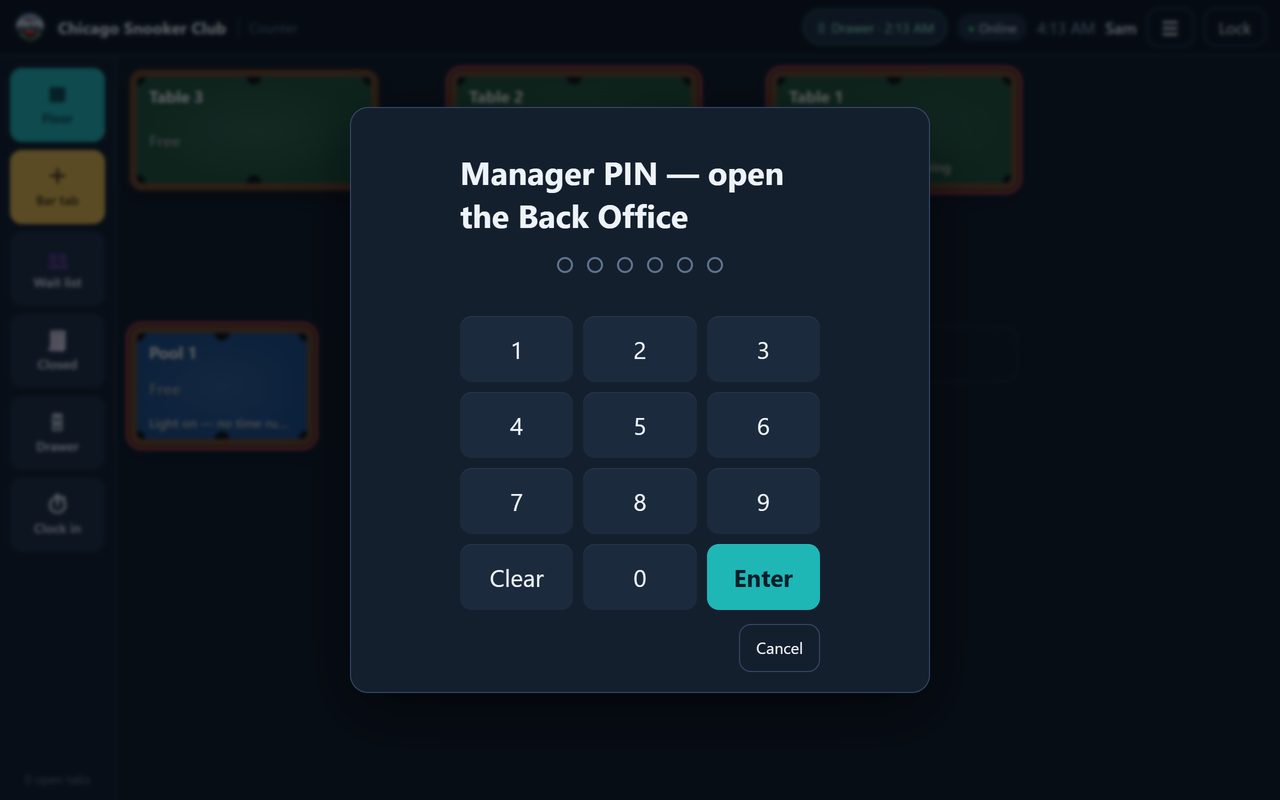
Tap ☰ and enter a manager PIN. The Back Office opens on the tablet.
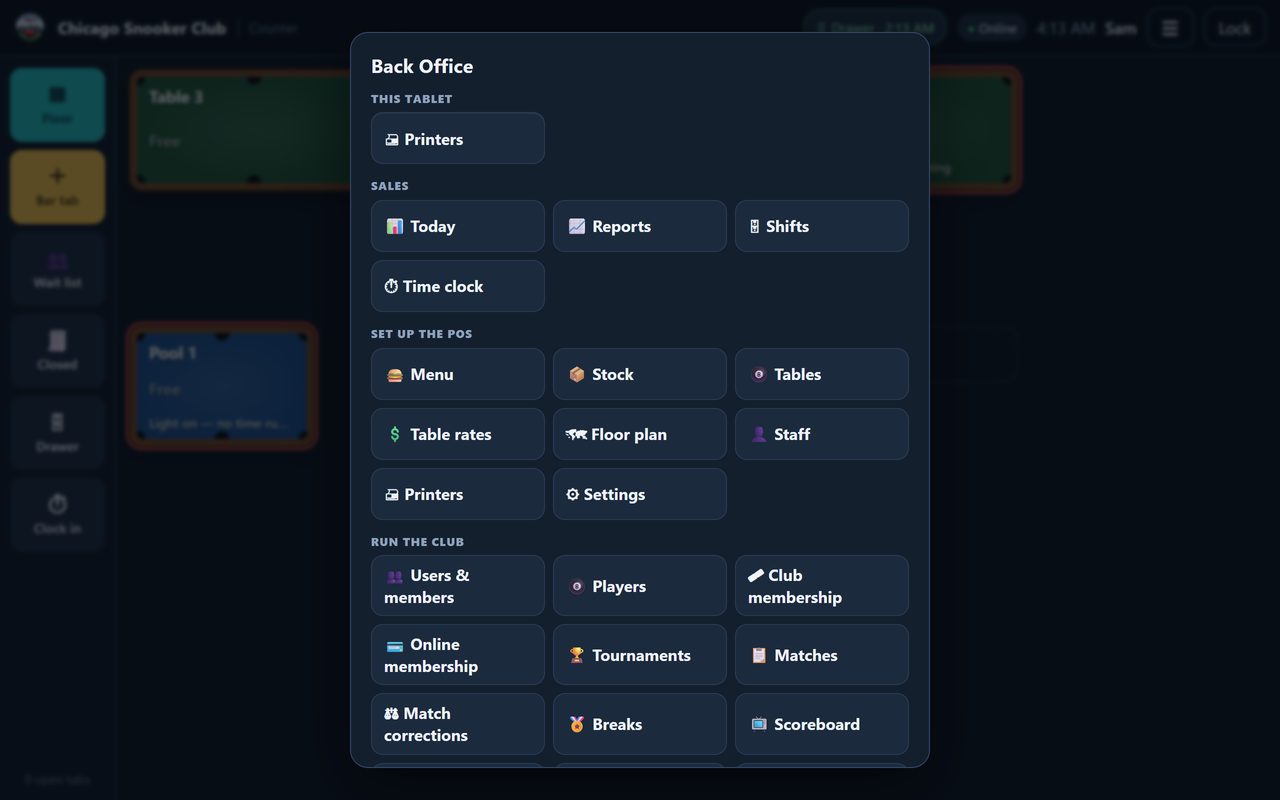
| Page | What it is for |
|---|---|
| 📊 Today | Sales so far, open tabs, tables in use, takings by payment type, low stock. |
| 📈 Reports | Any dates: sales by hour, items sold, table time, taxes, payments, and Checks (voids, discounts, comps, lights on with no time). Export to CSV. |
| 🗄 Shifts | Every drawer shift and server bank, and tips to hand out. |
| ⏱ Time clock | Staff hours and tips; fix a missed clock-out. |
| ⏳ Playing time | Who played on each table and for how long. |
| 🍔 Menu | Groups and items: price, picture, colour, options, printers, taxes, sold out. Also option groups, Taxes, happy hour and gift cards. |
| 📦 Stock | Deliveries, counts, waste and stocktakes; low-stock warnings. |
| 🎱 Tables | Each table, its rate and its Shelly light. |
| 💲 Table rates | Per hour, members' rate, minimum, rounding, priced by players, prepaid time, and peak or weekend prices. |
| 🗺 Floor plan | Drag the tables to match your room; print the table QR codes for ordering from the table. |
| 👤 Staff | Names, PINs and roles. |
| 🖨 Printers | Receipt and kitchen printers: language, print size, which groups each printer gets, the cash drawer. |
| ⚙ Settings | Dual pricing, end of the business day, receipts, ordering from the table, the wait list, POS tablets and Square settings. |
The Back Office closes after 15 minutes untouched, or when you tap 🧾 Open the POS.
11. More for the club
- Order from the table: guests scan the QR code on their table, see the menu with pictures and order. The order goes on that table's open bill and to the kitchen.
- Members: scan a member's card for member prices and discounts, renew a membership, or sign up a new member at the counter.
- Bookings: see the day's bookings, Seat a booking or mark a No-show.
- Wait list: add a name and mobile number, text them when a table is free, then Seat them. Players can also join the list from their phone.
- Barcode scanning: 📷 Scan on a bill, or a USB or Bluetooth scanner, adds items by barcode.
12. Help
Installation and staff training are by PaySetup. For help, contact your installer or CueSportAi support.