CueSportAi mobile app — user guide
Free on iPhone and Android.


The CueSportAi mobile app is one app for players and club staff. It does four things:
- Scorer: score snooker, pool and other sports by hand on your phone. It works offline, speaks the score in eight languages and keeps your matches on the phone.
- Club tables: find the CueSportAi AI tables at your club and follow a table's score live. Staff can also open a table's control page with the table's PIN.
- CueSportAi Online: your account, your matches and stats, live scoreboards and rankings, all inside the app.
- Go live: stream a match from your phone's camera to YouTube, Facebook or another service, with the scoreboard on the video.
You don't need an account to score. You need one to put matches online and see your stats, and to go live. Signing up is free and takes one tap with Google or Apple.
1. Install and sign in
- Install CueSportAi from the App Store on an iPhone or iPad (iOS 15 or newer), or from Google Play on an Android phone or tablet (Android 7 or newer). Use the badges above.
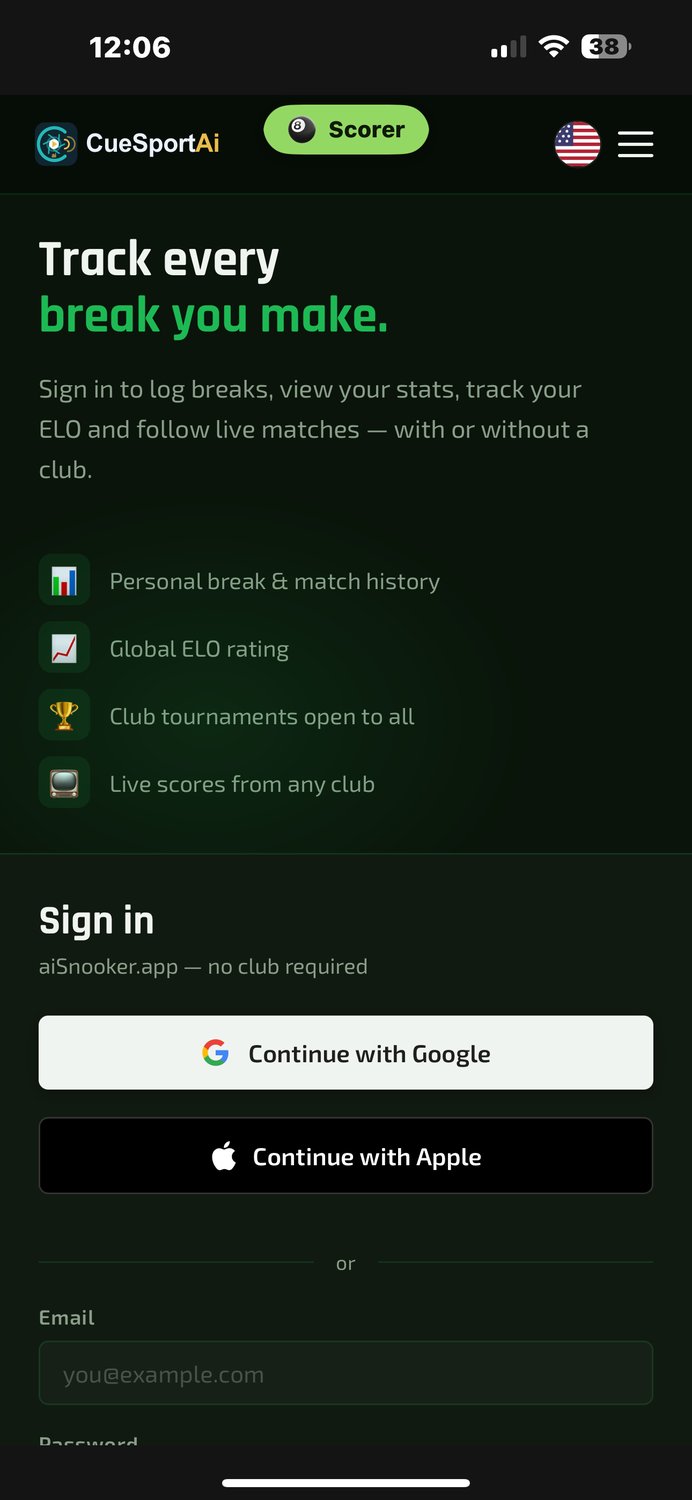
- Open the app. The first time, it opens on the CueSportAi website. After that it reopens wherever you left it.
- To sign in, tap Sign in at the top left of the scorer, or on the website page.
- Choose one:
- Continue with Google: pick your Google account.
- Continue with Apple: use your Apple ID. This works on Android too, so if you signed up on an iPhone with Apple you can sign in with the same account here.
- Email and password: use the ones you registered with on the website. If you forgot your password, tap Forgot? on the login page: we email you a link to choose a new one.
- No account yet? Tap Register free on the login page. The account guide explains signing up, your profile and joining your club.
Once you're signed in, your photo (or initials) and first name show at the top left. Tap them to open your profile. You stay signed in between visits. To sign out, use the website menu.
Tip: if Google sign-in says the app needs updating, update it on the App Store or Google Play. You can sign in with your email and password in the meantime.
2. Getting around
The scorer has three tabs. They sit at the bottom of the screen, or on the left when the phone is sideways.
| Tab | What's there |
|---|---|
| Control | The scoreboard and scoring keys for the match in play |
| 📋 Matches | Your active match, New Match, Club Tables, your online matches and Recent Matches |
| ⚙ Settings | Live stream, appearance (light or dark), language, voice, sound, club tablet and About |
- On the website or a table's page, the floating 🎱 Scorer button takes you back to the scorer.
- A text box with something typed in it (a player's name, a link, an address) shows ✕ at its right end while you're in it. Tap it to clear the box.
- Back closes a popup first, then returns to the Control tab. On the website, it steps back through the pages you visited.
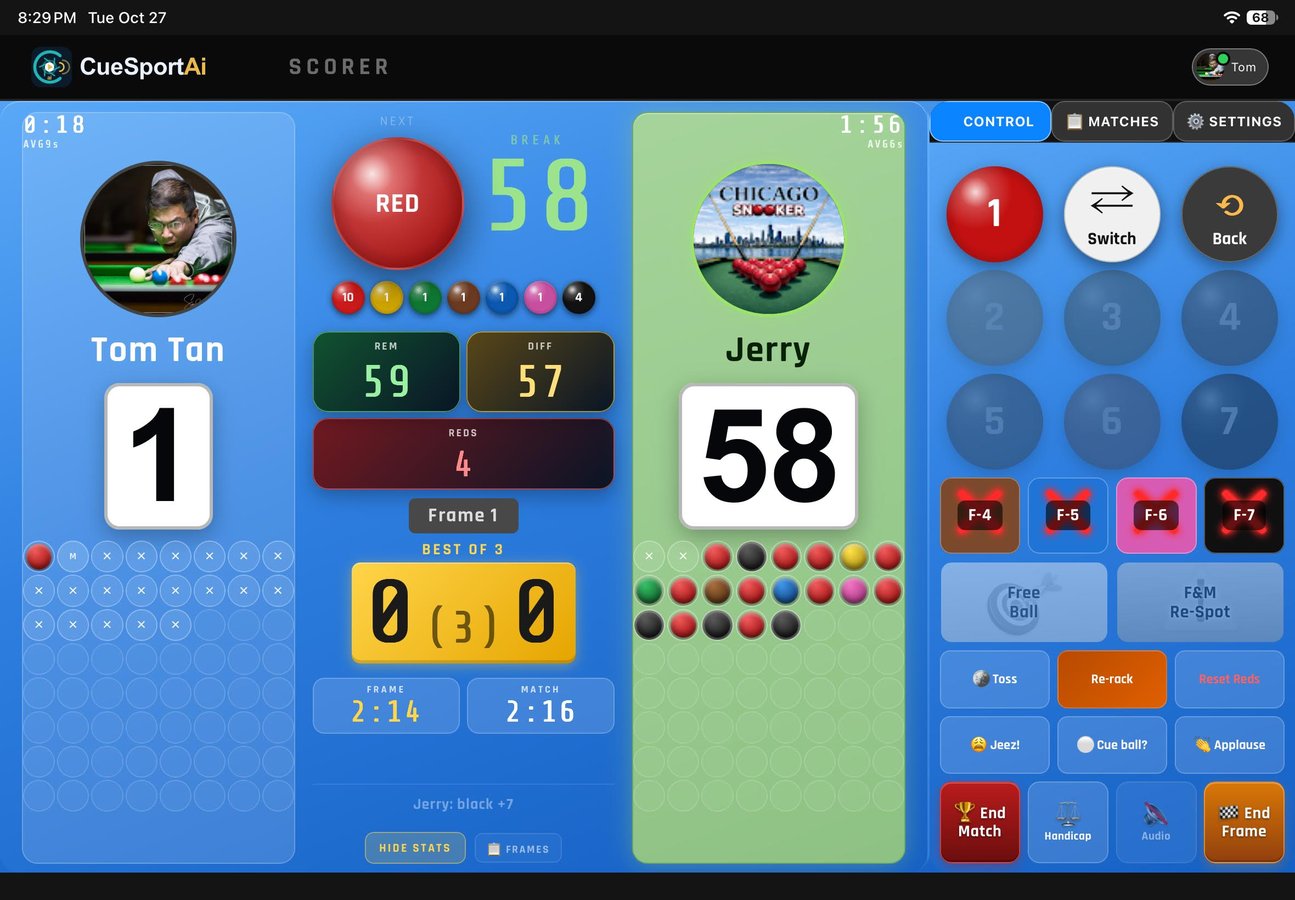
- Turn the phone sideways for the landscape layout. It has bigger keys, with the scoreboard on top.
3. Start a match
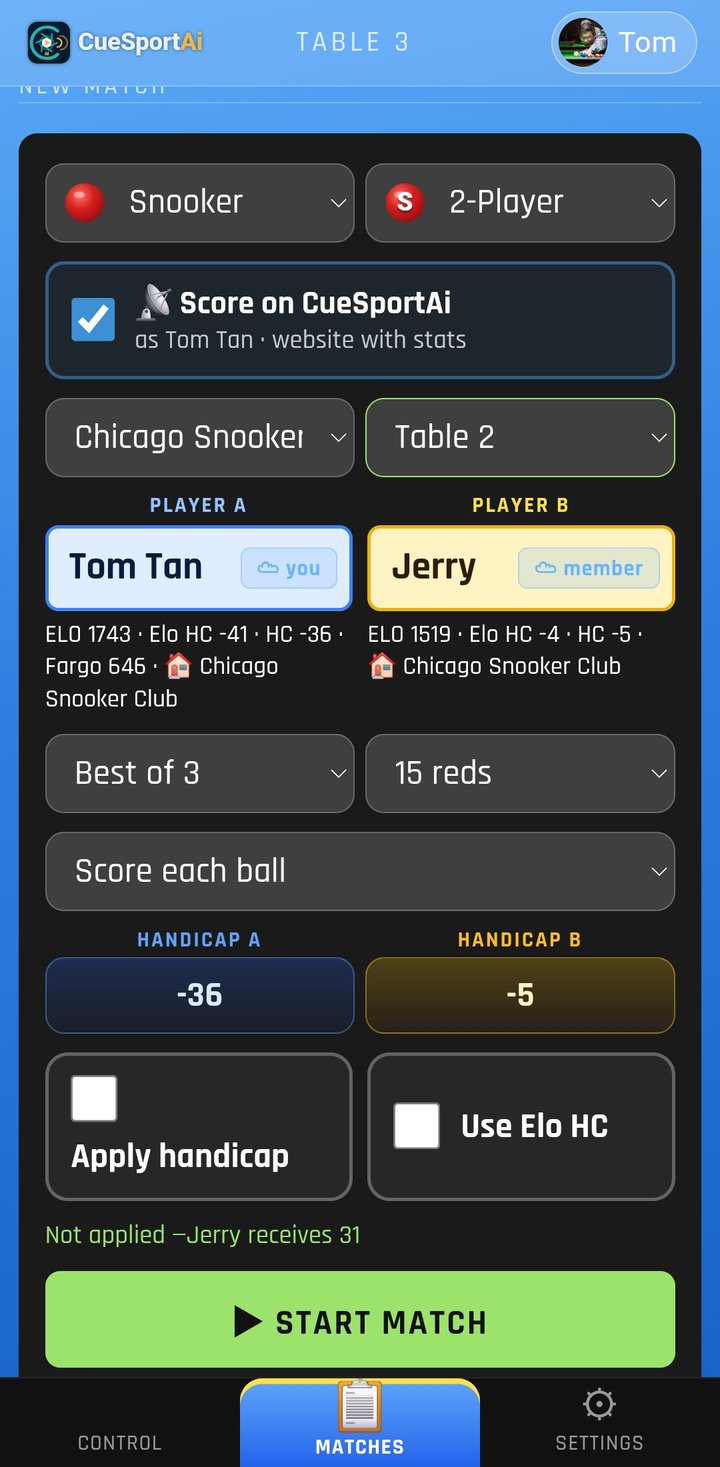
- Open 📋 Matches → New Match.
- Pick the sport (Snooker, Pool or Other sport), then the game:
- Snooker: 2-Player, Multi-Snooker, Team Doubles, Polo or Century.
- Pool: 8-Ball, 9-Ball, 10-Ball or Chinese 8-Ball.
- Other sport: darts, table tennis, pickleball, badminton, volleyball, basketball or a sport you name.
- Type the players' names. If you are signed in, start typing to search CueSportAi players. Anyone the search doesn't find is added as a guest. If you type a name that more than one member has, the app asks Which player? and lists each one with their club and ELO: pick the right one, or Play as a guest.
- Set the format:
- Snooker: Best of 1 to 11 frames, or Endless. Then pick 15, 10, 6, 3 or 1 red.
- Snooker scoring: pick Score each ball for normal scoring, or Enter breaks (no ball rules) (see section 6).
- Snooker handicap: enter a start for each player and tick Apply handicap. If you're signed in, you can also tick Use Elo HC to use the handicap from players' ratings.
- Pool: pick the Race to (3 to 13) and the break rule (Alternate, Winner breaks or Loser breaks). Then choose whether the game ball on the break wins or is respotted.
- Tap ▶ Start Match.
Online or on the phone? When you are signed in, New Match shows 📡 Score on CueSportAi, ticked by default:
- Ticked: the match is created on the website. The scoreboard, the overlay and both players' stats update live, and you can pick the club and table.
- Unticked, or signed out: the match stays on this phone only.
Your opponent accepts the match. When you put a member in as your opponent, the match counts for both of you once they accept it. Until then the scoring screen shows Waiting for your opponent to accept and you score as normal. If they're at the table with you, tap 📱 Opponent: scan to accept: your opponent scans the QR code with their own phone, signs in if asked and taps Accept.
A match scored only on the phone is not uploaded later. If you want it in your stats, sign in and tick Score on CueSportAi before you start.
To arrange a match for later, with an invite and a table booking, tap 📅 Schedule a match. It opens the match page on the website.
4. Score snooker
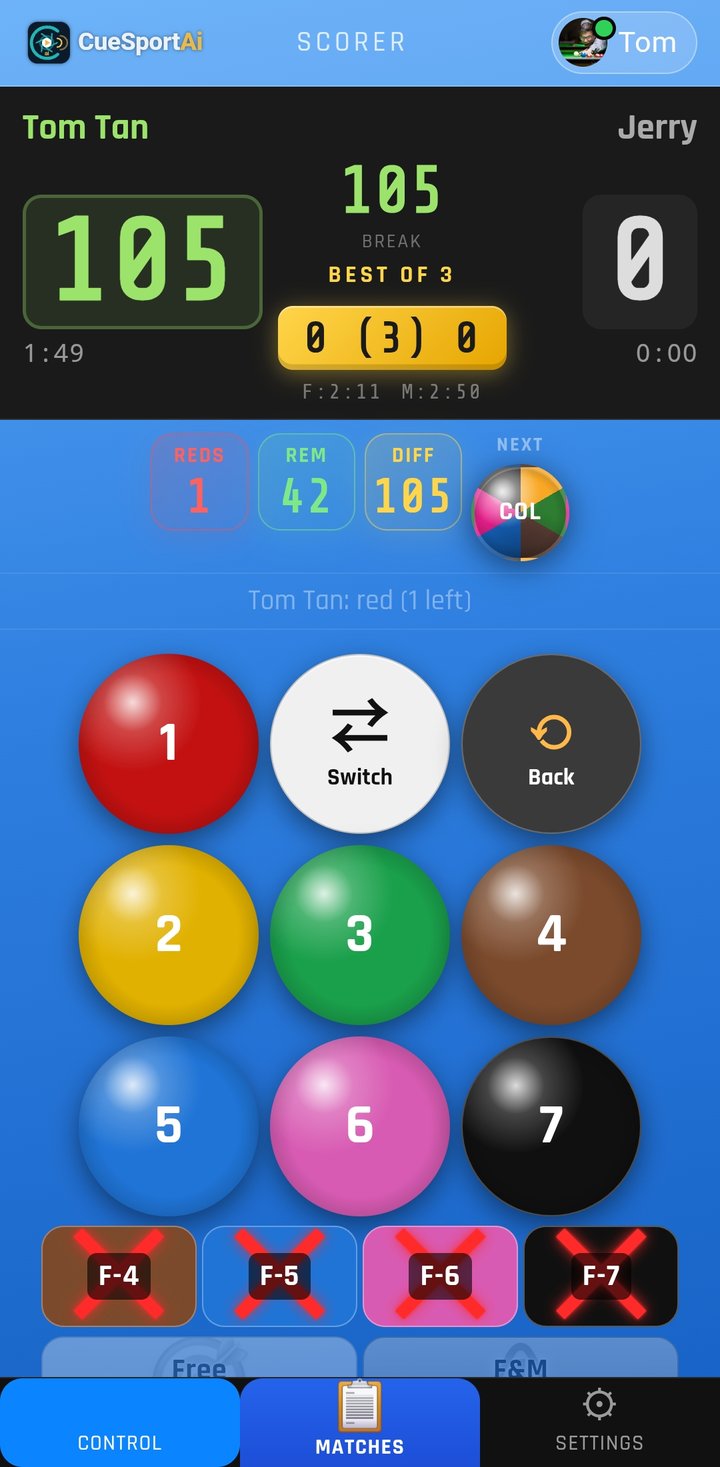
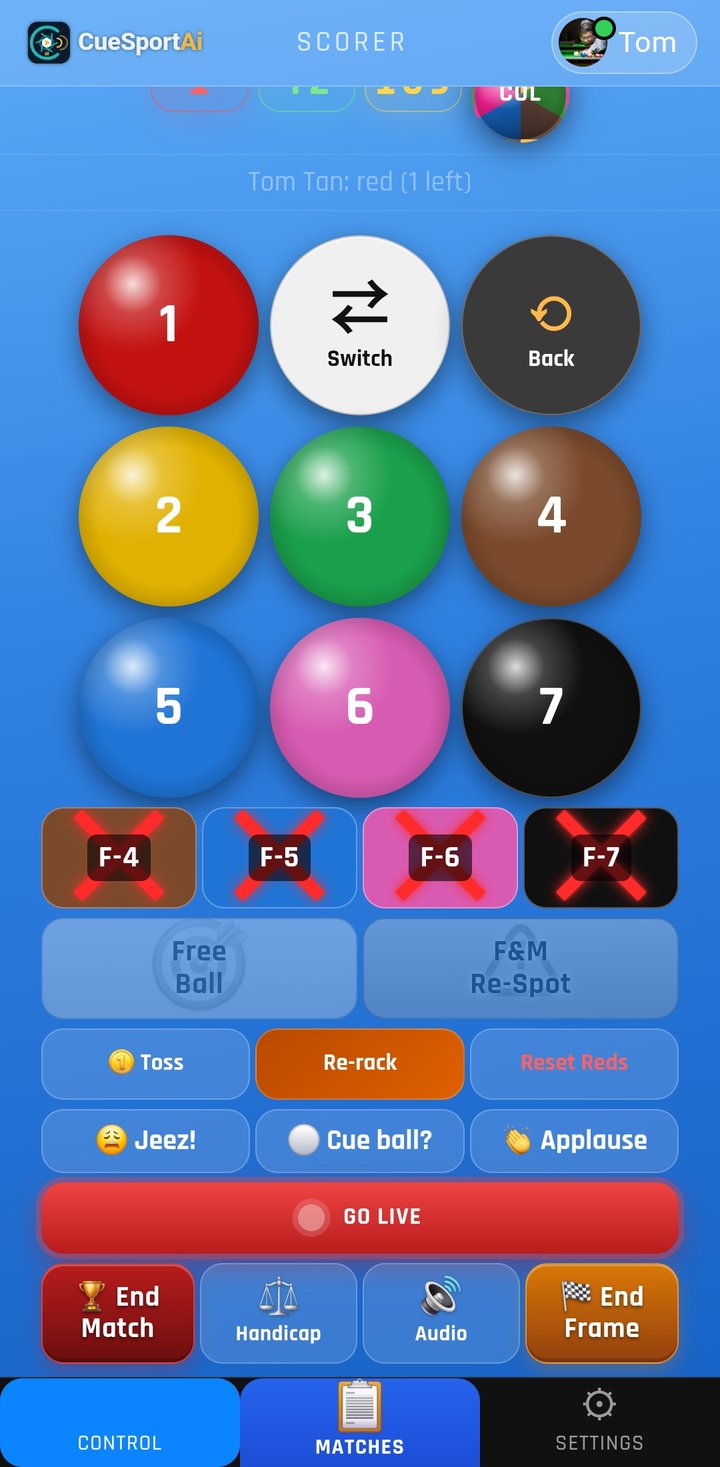
The ball keys are numbered by value: 1 red, 2 yellow, 3 green, 4 brown, 5 blue, 6 pink and 7 black. The scoreboard shows:
- the player at the table and their current break;
- reds left and points remaining;
- the points difference and how many snookers are needed.
- Pot: tap the ball that was potted. The app knows which ball is on and only accepts a legal ball.
- End of visit (miss or safety): tap ⇄ Switch. The turn passes to the other player.
- Foul: tap ✕ F-4, F-5, F-6 or F-7 for the foul value. Don't tap Switch first. The points go to the opponent, and the turn passes to them.
- After a foul: two extra keys light up for the incoming player:
- 🎯 Free Ball: tap this when the player pots a free ball. It scores the value of the ball on (1 when a red is on).
- ⚠ F&M Re-Spot: use this for a foul and a miss. The balls go back and the player who fouled plays again.
- Mistake? Tap ⟲ Back to undo the last action. Keep tapping to undo more steps.
- Change a score by hand: tap a player's score, change the frames or points, then tap Apply. ⟲ Back undoes this too.
- End a frame early (concession): tap 🏁 End Frame and choose the winner.
- End the match: tap 🏆 End Match. The match moves to Recent Matches.
Other keys:
| Key | Use |
|---|---|
| 🪙 Toss | Toss a coin for the break, or choose who breaks |
| Re-rack | Start the frame again |
| Reset Reds | Set how many reds are left, for example after two reds go down on one shot |
| ⚖️ Handicap | Change the handicap during the match |
| 🔊 Audio | Turn spoken announcements on or off |
| 😩 Jeez! / ⚪ Cue ball? / 👏 Applause | Play a fun sound (⚪ says Watch the cue ball!) |
The app applies the rules for you, including:
- the last black, and the re-spotted black when scores are level;
- who wins each frame and the match.
When a frame decides the match, the app asks Confirm & save or Keep playing. Keep playing adds frames to the match.
Multiplayer games (Multi-Snooker, Team Doubles, Polo and Century) use the same keys, with one score box per player.
5. Score pool
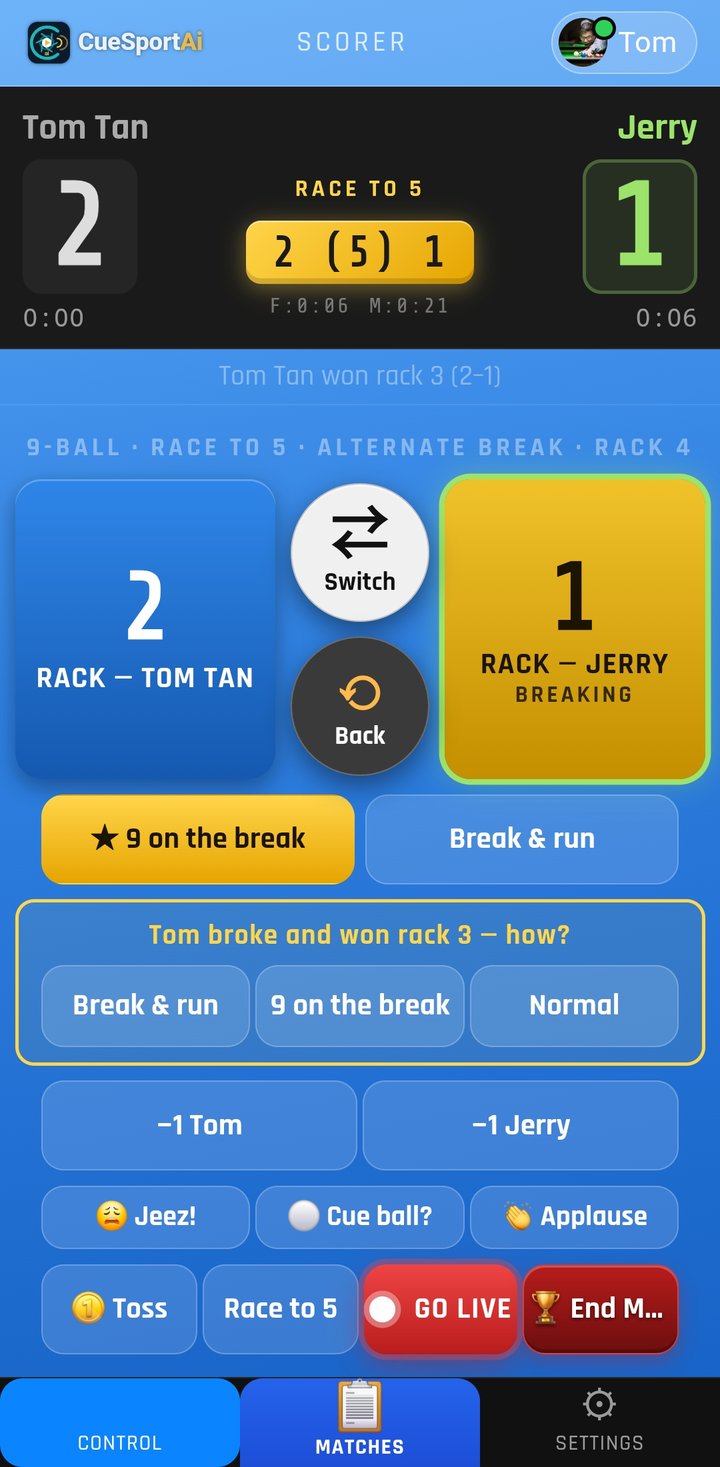
- Start a pool match (section 3). Before the first break, the screen shows ▶ Start and who breaks. To change the breaker, tap ⇄ Switch.
- Tap ▶ Start. The match clock and rack clock start.
- When a rack ends, tap the rack key of the player who won it.
- If the breaker won the rack, the app asks for a few seconds how it was won: Break & run, on the break (shown only when that wins in your game) or Normal. The breaker can also tap Break & run or ★ on the break straight away.
- ⟲ Back undoes the last action. −1 takes a rack away from a player.
- Race to changes the race length during the match. 🏆 End Match finishes it.
The score log under the keys lists every rack with its time. To mark how a rack was won, tap it.
Third-party scoreboard. For an event scored on another scoring service, open 📋 Matches and tap 🔗 Third-party scoreboard — follow & stream under New Match. Digital Pool is the service it works with now; more can be added later.
- When your match is up, Digital Pool texts you a link to score it. Copy that link.
- In the app, tap 🔗 Third-party scoreboard, paste the link and tap Follow.
- Score your match on Digital Pool on the other phone, as usual. This app follows the score each time you update it there, and shows it on the CueSportAi scoreboard (read-only).
You can go live with it from your phone (section 11), and the stream shows the same score.
6. Score snooker by breaks
For a quick record without scoring every ball, choose Enter breaks (no ball rules) when you start the match. To switch during a match, tap a score and tick Score by breaks.
- Type the break in the number box and tap the player who made it. Enter 0 for a visit with no score.
- For a foul, use F-4 to F-7. The points go to the other player.
- ⇄ Switch records a miss. 🏁 End Frame gives the frame to the player who is ahead.
- To correct or remove a break, tap it in the list.
- To return to normal scoring, tap Ball by ball. The app asks how many reds are left.
7. Other sports
Choose Other sport in New Match for darts, table tennis, pickleball, badminton, volleyball, basketball or a sport you name.
- Each side gets a colour and +1 and −1 keys. Sports that need them also get +2, +3 or a custom value.
- You can add periods (sets, games or quarters) with best-of, and a clock that counts up or down.
Other-sport matches stay on the phone and don't count in your CueSportAi stats.
8. Your matches
Open 📋 Matches:
- Active Match: tap it to go back to the match. ✕ ends it and moves it to Recent Matches.
- My CueSportAi matches (when you're signed in): your live online matches. Tap one to score it here or follow it. You can only follow a match that an AI table is scoring.
- Recent Matches: tap a match to see its frame scores, Restore it (carry on where it stopped), start a Rematch or Delete it.
Two phones, one online match: only one phone scores an online match at a time.
- The other player's phone follows the match live, read-only. To score from it instead, tap Take over scoring.
- If a phone loses its connection, it keeps scoring and sends the latest score when it's back online.
- If the match carried on on another phone in the meantime, the app asks which version to keep. It never overwrites a score without asking.
The scoring phone keeps itself up to date. While the app is open, and as soon as you come back to it, it checks the online match every few seconds:
- Ended somewhere else (on the website, at the table or on the other phone): the final score is saved, the match moves to Recent Matches, and the app goes back to 📋 Matches.
- Another phone took over the scoring: your phone switches to following theirs.
- Corrected on the website: your phone takes the corrected score and carries on. The last action reads Corrected on CueSportAi.
A match you follow that has finished stays on screen for 15 seconds, then the app goes back to your own matches.
Ended a match by mistake? You can resume an online match for 10 hours after it first ended. If you start a new match between the same two players in that time, the app offers to Resume the old one.
9. AI tables and stream boxes at the club
At a club with CueSportAi AI tables or stream boxes, your phone can follow a table's live score, and staff can open the table's control page.
- Join the club Wi-Fi. Mobile data won't work, and neither will a guest network that keeps devices apart.
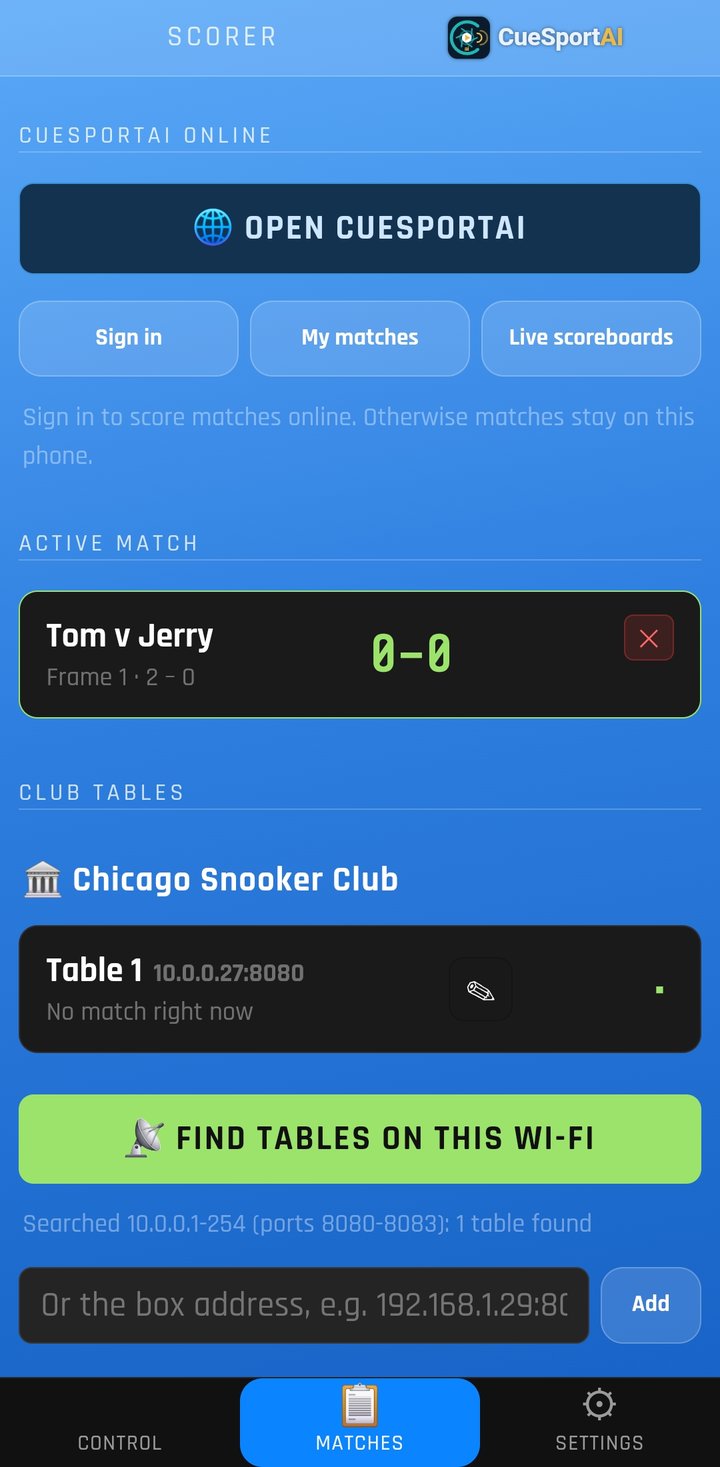
- Open 📋 Matches → Club Tables → 📡 Find tables on this Wi-Fi.
- The app lists the tables it finds, grouped by club. Each shows the match on it (players, score and frames), or No match right now. Stream boxes are marked 📡 Stream box.
The list only shows tables found on the Wi-Fi you're on now. It refreshes by itself when you open 📋 Matches, and when you come back to the app after a while. Tables from another club, or from an earlier visit, stay hidden until the app finds them again.
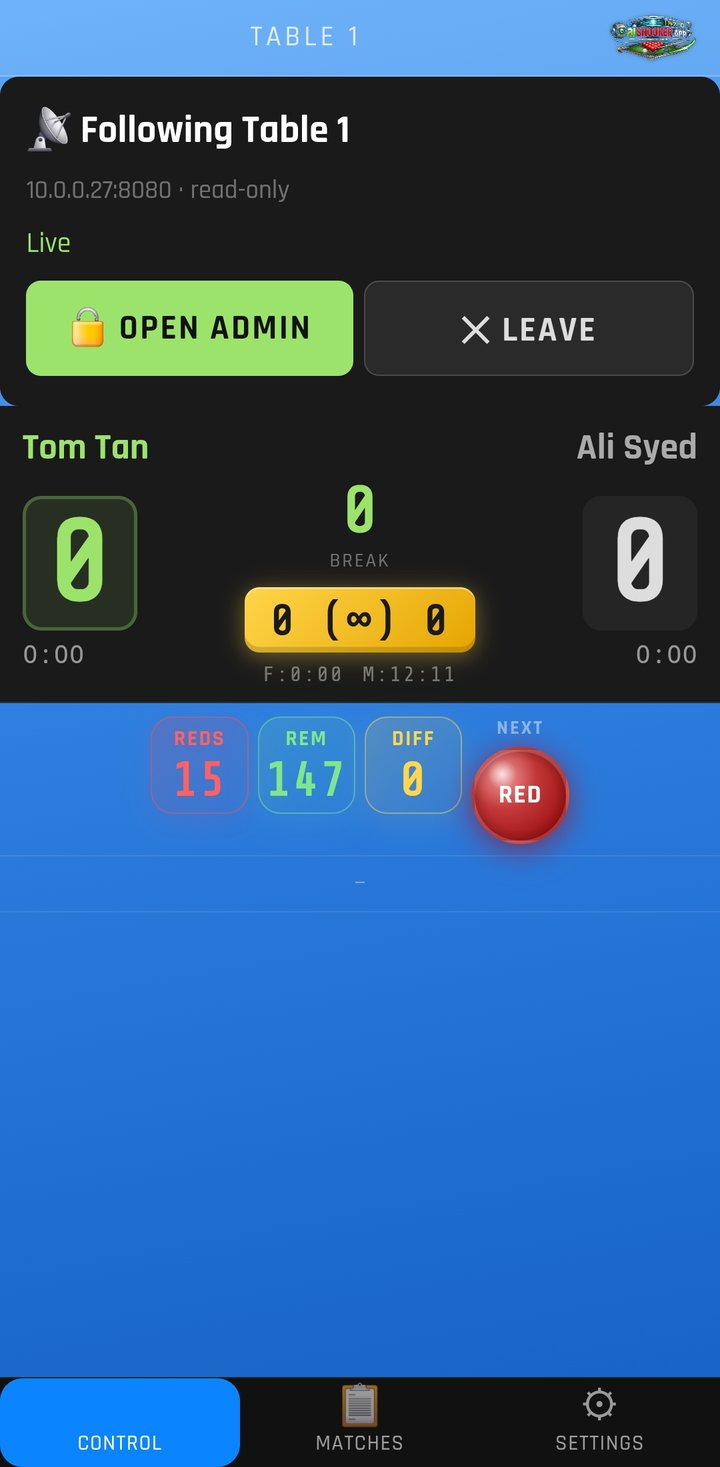
- Tap a table to follow it. The Control tab shows the table's live scoreboard, read-only. To return to your own scoring, tap ✕ Leave.
If the search finds nothing, ask the club staff for the table's address. Type it in the box under the button and tap Add. To change the club name a table is listed under, tap ✎ on the table.
Staff: open a table's control page
- Follow the table, then tap 🔓 Open Admin.
- Enter the table's operator PIN.
The app opens the table's control page. It has the same controls as the table tablet, so staff can start matches and correct the score from the phone. Tap 🎱 Scorer to come back.
If the app says no PIN is set, set one on the table's control page under Settings → Player App → Operator PIN.
The AI table scores its own matches. Players follow them in the app. Corrections are made by staff on the table's control page.
The club's stream box
The app doesn't start or stop a club's stream box. Staff run it from the stream box's own control page (cameras, sound, commentary, going live): follow it in Club Tables, then tap 🔓 Open Admin. The stream box user guide explains it.
GO LIVE in the app always streams from your phone's camera (see section 11).
10. Sign in at an AI table with a QR code
At an AI table, players can put their own CueSportAi accounts on the scoreboard, so the match counts in their stats.
- Before the match starts, the empty player card on the table screen shows a QR code.
- Scan it with your phone's camera.
- The CueSportAi sign-in page opens. If asked, sign in with Google or email. Check the name and tap Yes, that's me →.
- The page says You're signed in. Your name and photo appear on the table's player card.
If the page says This code expired, ask for a fresh QR code on the table and scan again. More about signing in at a table, and unrated matches, is in the account guide.
11. Go live from your phone
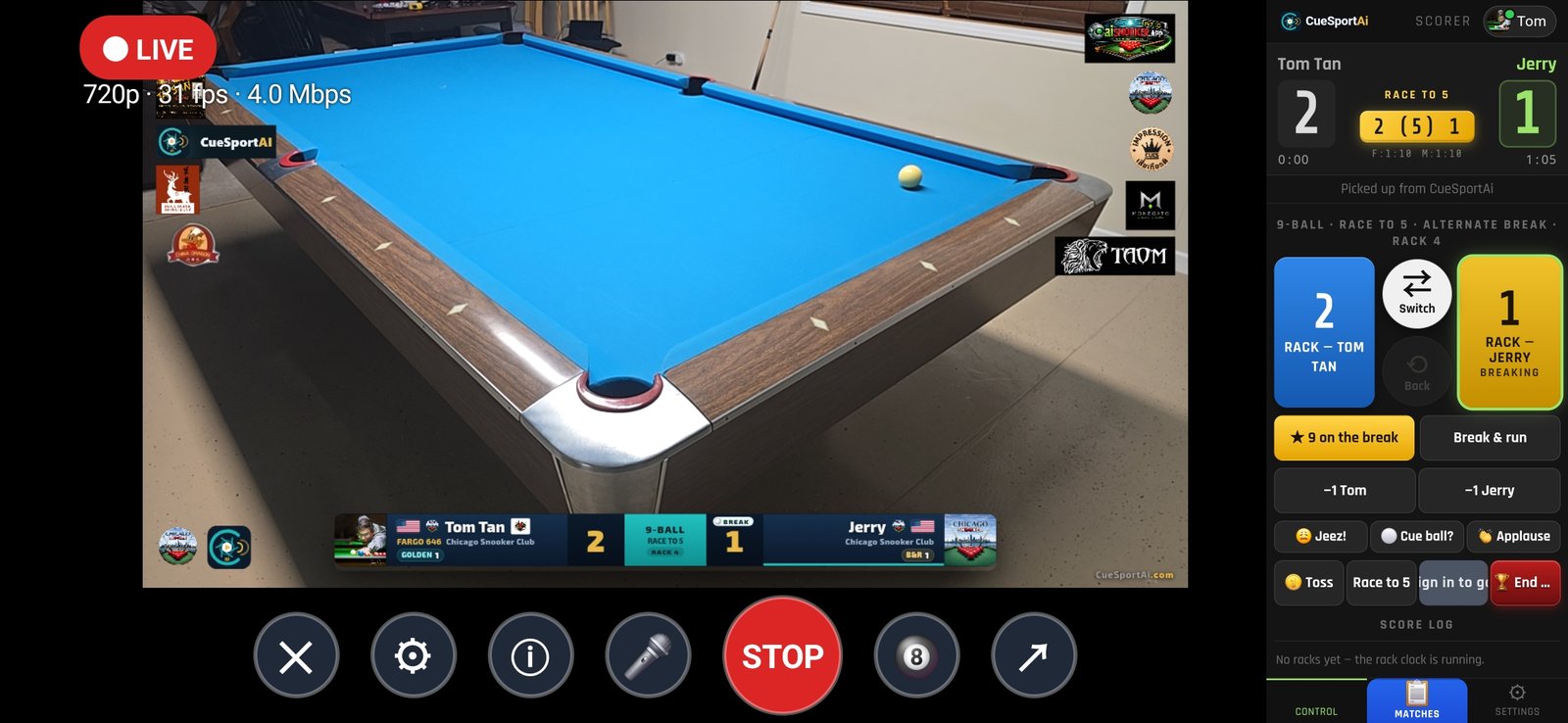
You can stream a match from your phone's camera with the scoreboard on the video.
Before you start
- Put the phone on a tripod or stand, in landscape, where it can see the table.
- Plug the phone in if you can, and use Wi-Fi with a good upload speed.
- Keep the app open on the stream screen while you're live. If you switch to another app, the phone may stop the camera.
Start the stream
- Start or open the match you want to stream. You can stream snooker, pool and other sports, and a Digital Pool match you follow (its score goes on our pool scoreboard). You can't stream multiplayer snooker games from the phone yet.
- Tap the red GO LIVE button. You'll find it on the scoring screen, in ⚙ Settings → Live stream, and as 📡 on the match card.
- The first time, allow the app to use the camera and microphone.
- The Stream setup screen opens. Everything is on this one screen:
- Where to stream: tap a tile: Facebook, YouTube, Restream, Other RTMP, or one of your saved keys (🔑). What that channel needs shows right under the tiles.
- Also stream to (Plus): send the same stream to a second channel.
- Camera (this phone, or an IP camera) and Quality.
- Title: the name of the stream on Facebook and YouTube, for example Tom Tan v Jerry — race to 5.
- 🏷 Show my sponsors (Pro): your sponsors' logos on your side of the scoreboard.
- Tap NEXT › camera. The camera screen opens in landscape, ready to go.
- Tap GO LIVE. The Go Live — Privacy Notice asks you to confirm that everyone on camera has agreed to be streamed and recorded. Tap ✓ Accept & Go Live. It asks each time you go live.
- The status changes to ● LIVE. To share the watch link, tap ↗.
If a player in the match has asked not to be streamed, the app says so and doesn't go live. For a match scored only on the phone it checks the names you typed: if it's someone else with the same name, add an initial to the name in the match setup.
On an iPhone or iPad the stream screen is simpler for now. Tap GO LIVE on the scoring screen and the camera opens straight away. Tap ⚙ to choose where to stream: Sign in with YouTube, one of your saved stream keys, or a key you type on the phone (Facebook, YouTube, Restream or another RTMP server). The Facebook login, Also stream to, the IP camera and 🏷 sponsors are on Android for now and come to iPhone in a later update.
The Stream setup screen turns with the phone, so you can fill it in upright. ⓘ at the top shows what each plan includes. ‹ goes back without streaming.
Where to stream
| Tile | What to do |
|---|---|
| YouTube | Tap ▶ Sign in with YouTube and pick your Google account. Then choose Public, Unlisted or Private. |
| Tap Log in with Facebook once and pick your profile or a Page. Then choose who can watch. For a Group, use a Facebook stream key instead. | |
| Restream | Paste your Restream stream key. |
| Other RTMP | Paste any RTMP or RTMPS server URL and the stream key. |
| 🔑 Saved keys | Keys you saved on the website under Profile → My stream keys. Every phone you sign in on can use them. |
Sign in first. Going live needs your CueSportAi account (free, one tap with Google or Apple). Once you're signed in, ▶ Sign in with YouTube adds a channel to your account, and it can be the channel of any Google login, not only the one you signed in with.
On the stream screen
| Control | What it does |
|---|---|
| GO LIVE / STOP | Start or stop the stream |
| 🎤 | Mute or unmute the microphone. While muted, viewers hear silence. |
| ⟲ | Switch between the back and front camera, also while live. The app remembers your choice. (Android: top right of the picture, from app 2.3.9.) |
| 🎱 | Show or hide the scorer beside the camera. Long-press to change its size. |
| 🏷 | Show or hide your sponsors on the stream (Pro) |
| ⚙ | Open the Stream setup screen again, over the camera |
| ⓘ | Open streaming help and see what each plan includes |
| ↗ | Share the watch link (while live) |
| ✕ | Close the stream screen |
| Pinch | Zoom in or out |
| Tap the picture | Focus and set the brightness on that spot |
| Long-press the picture | Lock or unlock exposure and colour |
The preview shows exactly what viewers see.
- Score in the panel beside the camera, and the scoreboard on the video updates straight away.
- For an online match, someone else can score from their own phone, and the stream follows.
The line under the status shows the quality, frame rate and upload speed. A warning appears if the phone gets hot or the battery runs low.
Change settings (⚙)
⚙ opens the same Stream setup screen over the camera. Tap SAVE to go back to the camera with the changes, or ‹ to go back without them. You can only change the channel and quality while you're not live.
- Quality: 720p (recommended) or 1080p (Plus). 1080p needs a strong upload (6 Mbps or more) and warms the phone.
- Camera: This phone, or an IP camera (RTSP) on the same Wi-Fi (Plus). With an IP camera, choose the camera's mic or the phone's mic for the sound.
- Also stream to: the second channel uses twice the upload.
Your sponsors on the stream
Add your sponsors' logos on the website under Profile → My sponsors. Tick 🏷 Show my sponsors on the Stream setup screen (or tap 🏷 on the camera screen). The logos show on your side of the scoreboard, with a name tag, on every match you stream. This is a Pro feature.
Stop the stream
- Tap STOP.
- When asked End the stream?, confirm. Viewers see the stream end. To carry on instead, tap Keep streaming.
Facebook Groups: the Facebook login streams to your profile or a Page. For a Group, use a persistent stream key from Facebook's Live Producer (Streaming software → Use a persistent stream key) and save it in Profile → My stream keys.
Some extras are marked Plus or Pro: 1080p, the IP camera, a second channel and your sponsors. During the launch, every feature is open to everyone. To see what each plan includes, tap ⓘ.
12. Matches, stats and rankings
In 📋 Matches → CueSportAi Online:
- 🌐 Open CueSportAi opens the website inside the app.
- My matches lists your matches, live and finished.
- Live scoreboards shows every live match on CueSportAi.
- 🪪 My Card and Membership show your club membership card, if your club uses memberships. Show the card's QR code at the club desk.
The website menu also has:
- Rankings and Handicaps;
- Players;
- My Game (your stats) and My Breaks;
- your Profile, with your Elo rating, handicap, FargoRate for pool and top breaks.
Tap 🎱 Scorer to come back to the scorer.
13. Language, voice and sound
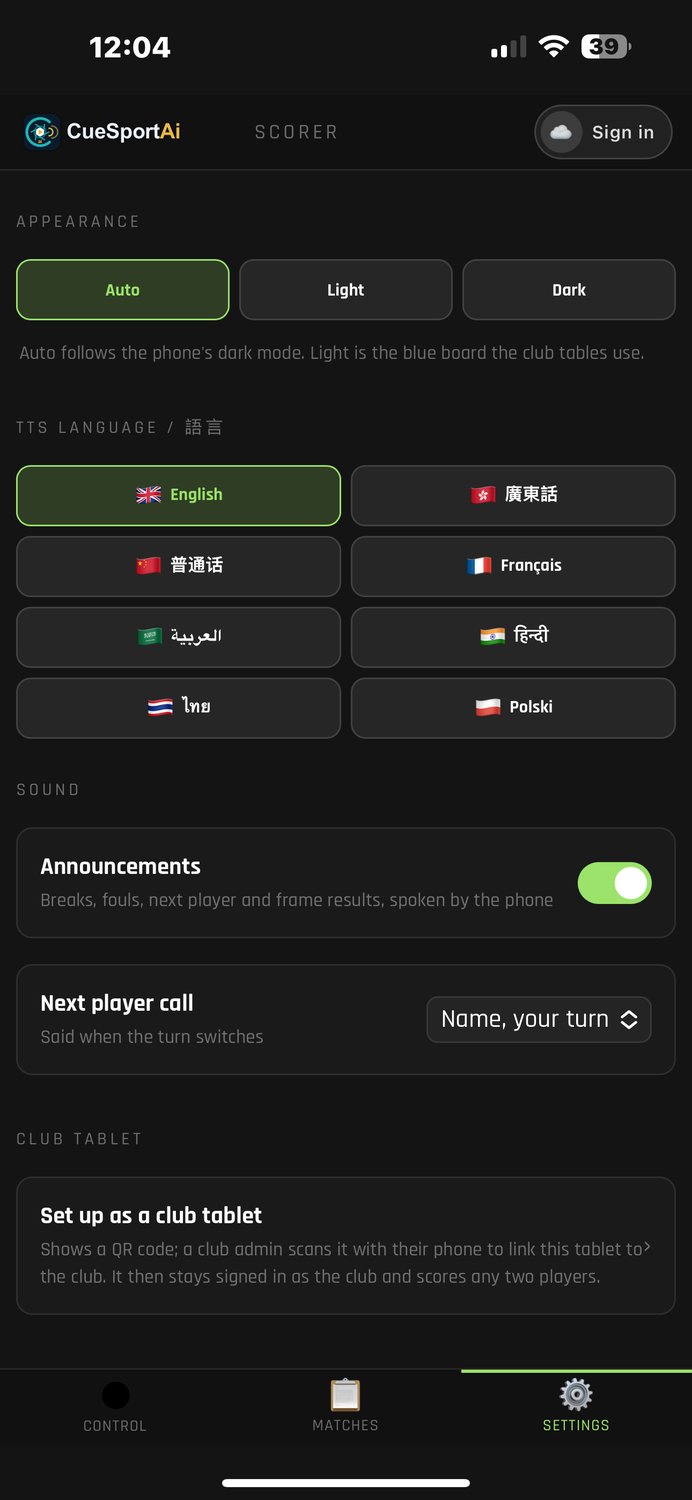
Open ⚙ Settings:
- Language: English, 廣東話 (Cantonese), 普通话 (Mandarin), Français, العربية, हिन्दी, ไทย or Polski. The screens and the spoken announcements change together.
- Voice: Auto uses the phone's default voice for the language, or you can pick a voice. If the app says the phone has no voice for your language, add one in Android Settings → Text-to-speech, then pick the language again.
- Announcements: turn the spoken breaks, fouls, next player and frame results on or off. 🔊 Audio on the scoring screen does the same.
- Next player call: choose what the app says when the turn changes: Name, your turn, Name, you're up, Name, please, Name, to play or Name only.
- Appearance: Auto follows the phone's dark mode. Light is the blue board the club tables use. Dark is always dark.
The screen stays on while the app is open, so it won't go dark during a frame.
14. For club staff: use a tablet as a table scorer
A club tablet can stay signed in as the club instead of as a person.
- On the tablet, sign in, then open ⚙ Settings → Club tablet → Set up as a club tablet.
- The tablet shows a QR code. A club admin scans it with their phone to link the tablet.
- The tablet now scores for the club. For each match you pick both players, and the matches go online and count in the players' stats.
To manage linked tablets, go to Admin → Tablets on the website.
15. Common problems
| Problem | What to do |
|---|---|
| No AI box found on this Wi-Fi | Join the club Wi-Fi (not mobile data or a guest network) and tap Find tables again. Or ask the staff for the table's address and Add it. |
| A table I used before isn't listed | The list only shows tables on the Wi-Fi you're on now. Join the club Wi-Fi and tap Find tables. If it still isn't found, the table may be switched off. |
| Wrong PIN or No operator PIN is set | Ask the club staff. The PIN is set on the table's control page. |
| This AI box needs a software update | Ask the club to update the table. |
| No spoken announcements | Check that 🔊 Audio is on and the phone's media volume is up. Check ⚙ Settings → Voice. Add a voice for your language in Android's text-to-speech settings. |
| A channel tile says Sign in to use …, or GO LIVE says Sign in to go live | Sign in to your CueSportAi account first (see section 1). If the app says streaming isn't switched on for your account yet, contact CueSportAi support. |
| Update CueSportAi to stream | Update the app on Google Play, then go live again. |
| Stream key refused | Copy the key again from YouTube Studio (Go live → Stream) or from your streaming service. Or use Sign in with YouTube instead. |
| Live streaming isn't switched on for this YouTube channel yet | In YouTube Studio, turn on live streaming and verify the channel with a phone number. YouTube can take up to 24 hours to switch it on. |
| … has asked not to be streamed or recorded | One of the players has opted out, so this match can't be streamed. |
| The stream keeps reconnecting or drops frames | Use 720p, move closer to the Wi-Fi router, or stop other uploads on the network. |
| Phone very hot | Take the phone out of its case and out of the sun, plug it in, or use 720p. |
| My match isn't on the website | Matches scored with Score on CueSportAi unticked stay on the phone. They aren't uploaded later. |
| This match carried on on another phone | Choose whether to keep the other phone's score or yours. |
| A match was ended by mistake | Online match: within 10 hours, start a match between the same two players and choose Resume. Phone-only match: go to Recent Matches and tap Restore. |
| Google sign-in fails | Sign in with your email and password, and update the app. |
Still stuck? Contact CueSportAi support at support@cuesportai.com, or see cuesportai.com/support.